Getting started
Welcome to the official documentation for Book Rx, your comprehensive solution for managing healthcare appointments, prescriptions, and medical records.
Registering your pharmacy
Registering as a healthcare provider with BookRx is a straightforward process. You just need to follow the steps outlined below:
Step 1: Navigate to our website
- Go to https://bookrx.ca
Step 2: Click "Sign Up Free"
- Click on the "Sign Up Free" button on the website.

Step 3: Enter Your Details
- Fill in your Name, Email, Administrative Name, and Contact Number in the designated fields.
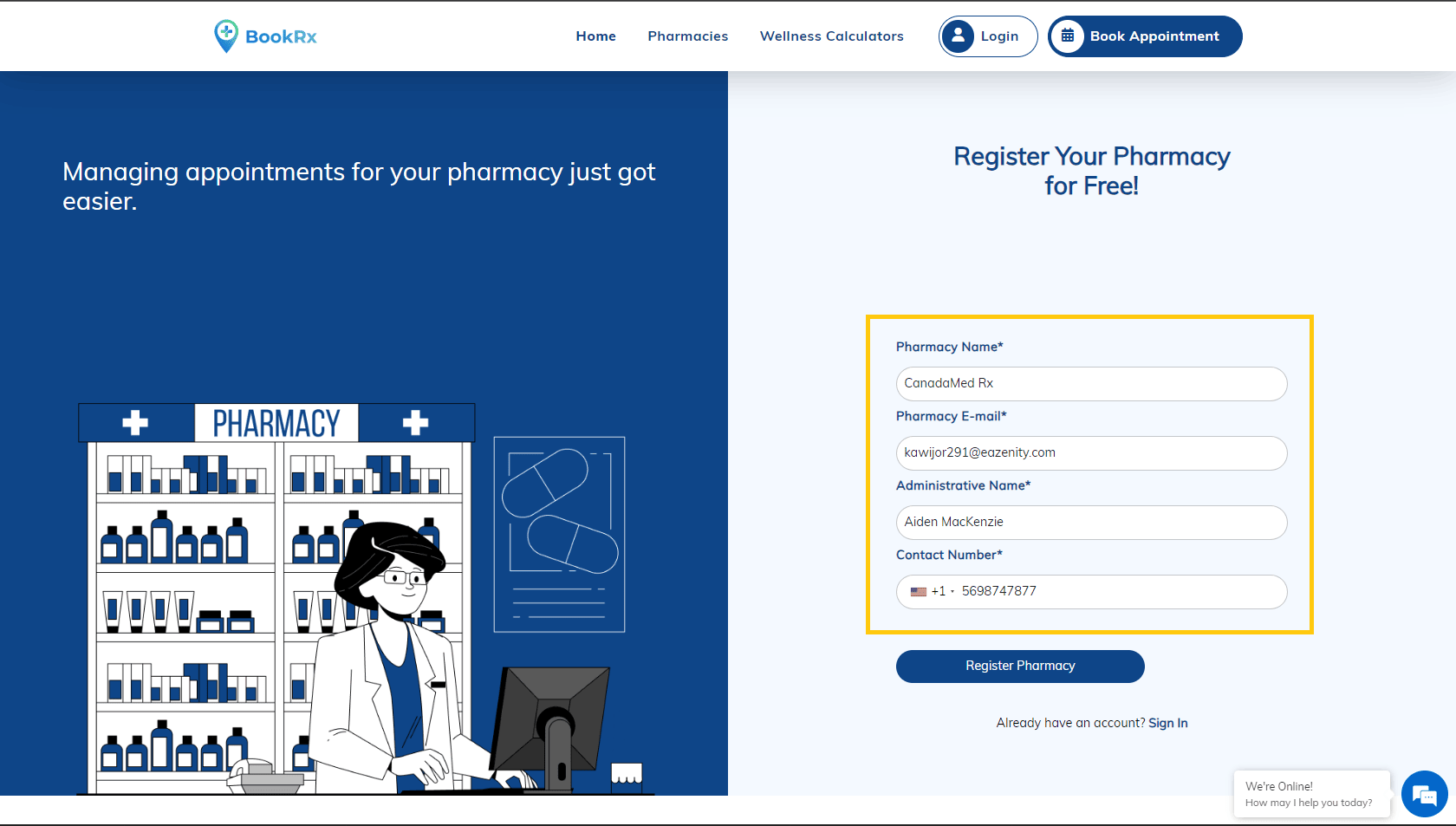
Step 4: Click "Register Now"
- Click on "Register Now" to proceed.
 Step 5: Type OTP
An one-time password (OTP) will be sent to your email. Do type it in designated field.
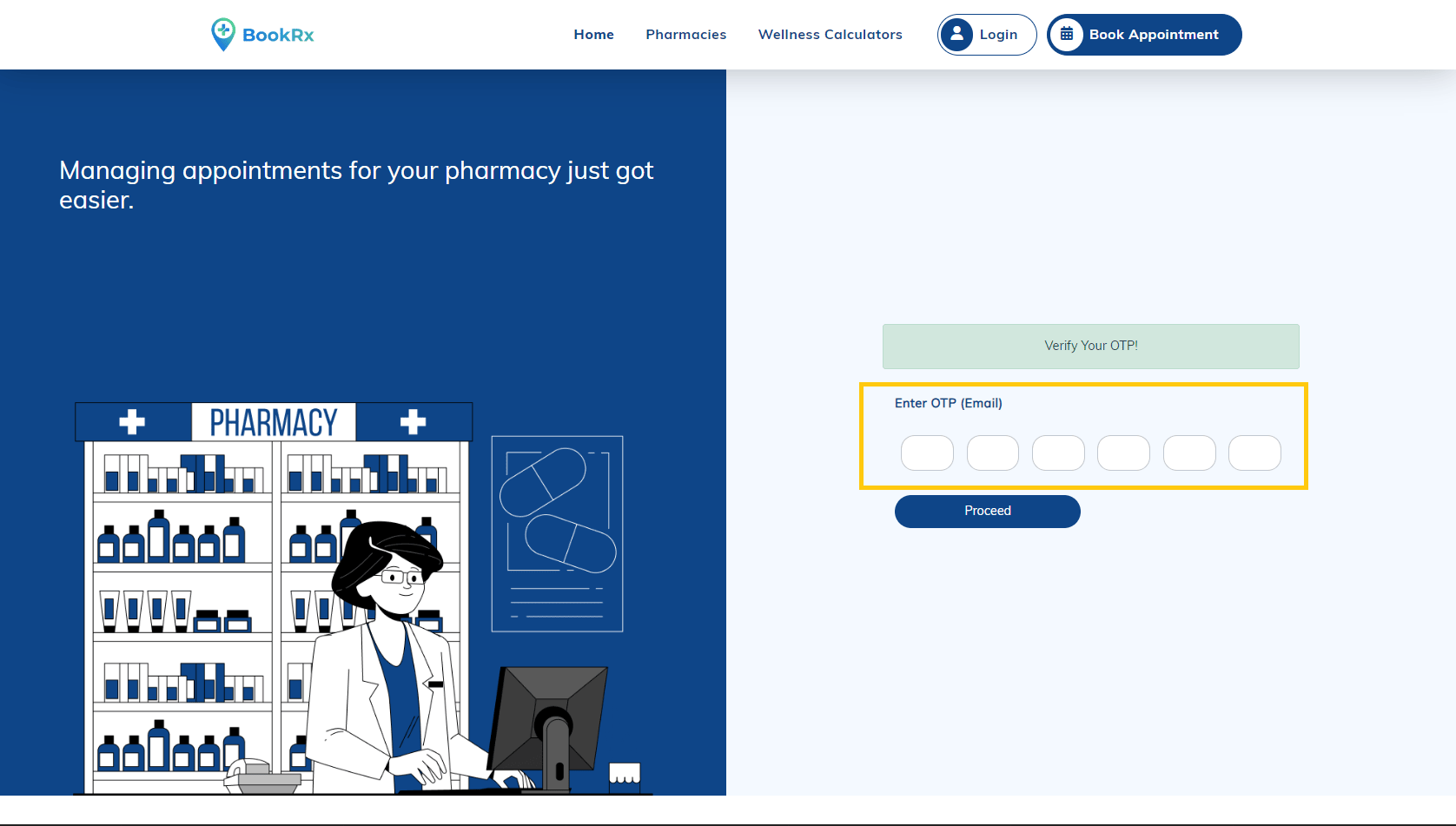
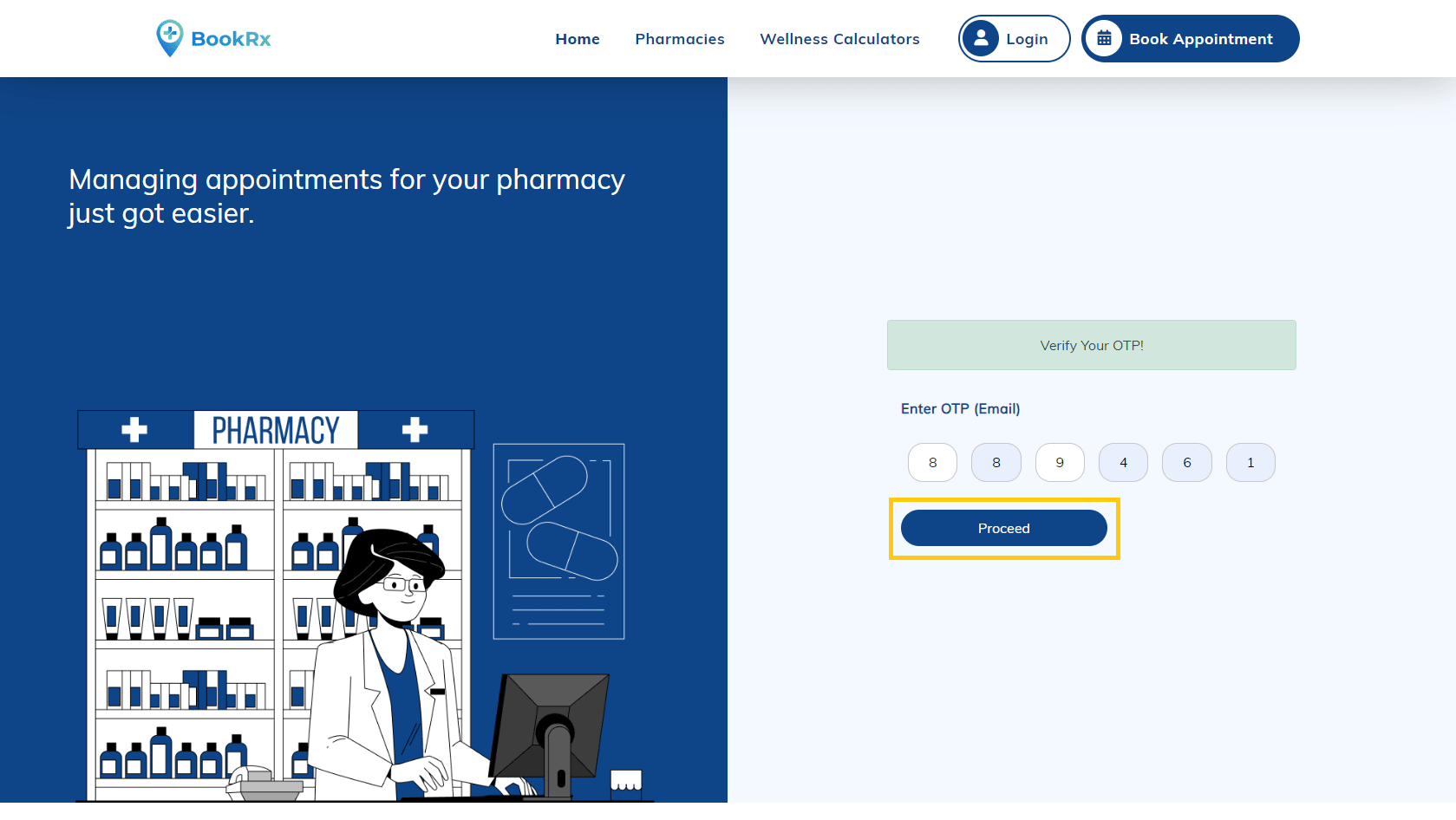
Step 6: Verify OTP
- Enter the OTP in the designated field and click "Proceed" to continue.
Step 7: Set a New Password
- Set a new password for your pharmacy account. Confirm it by retyping it in the "Confirm Password" input box and click "Proceed."
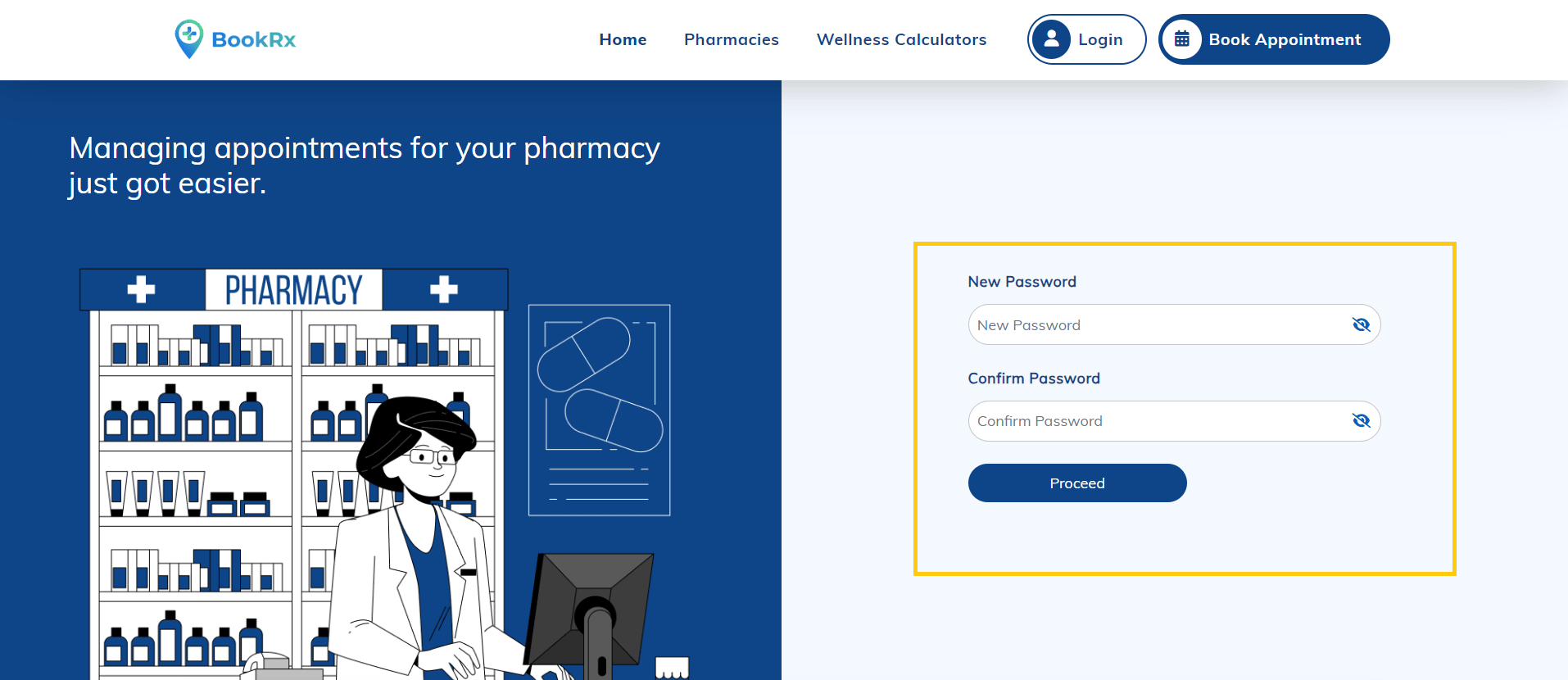 Congratulations! You have signed in to BookRx. Now, let's set up your pharmacy.
!
Step 1: Select Your Pharmacy Location
- Search for your pharmacy location in the "Search for your location" input box.
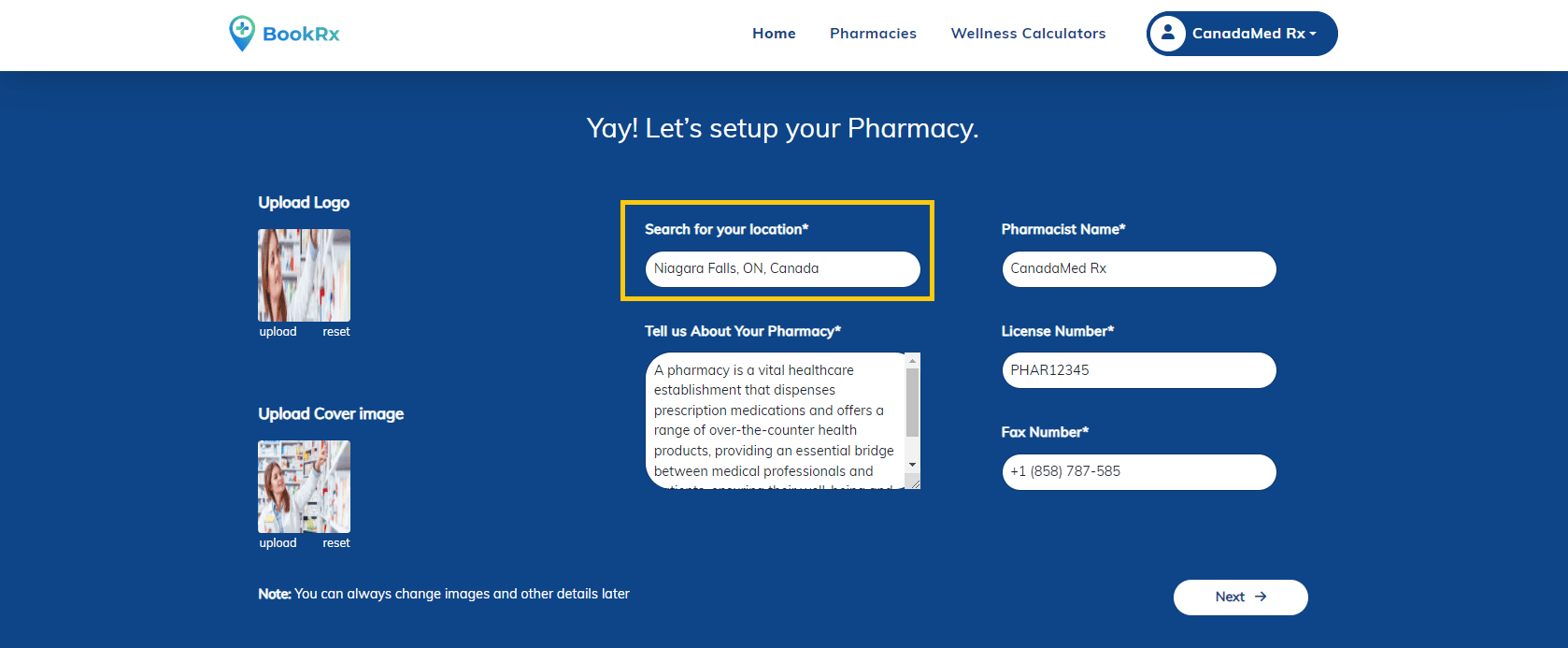
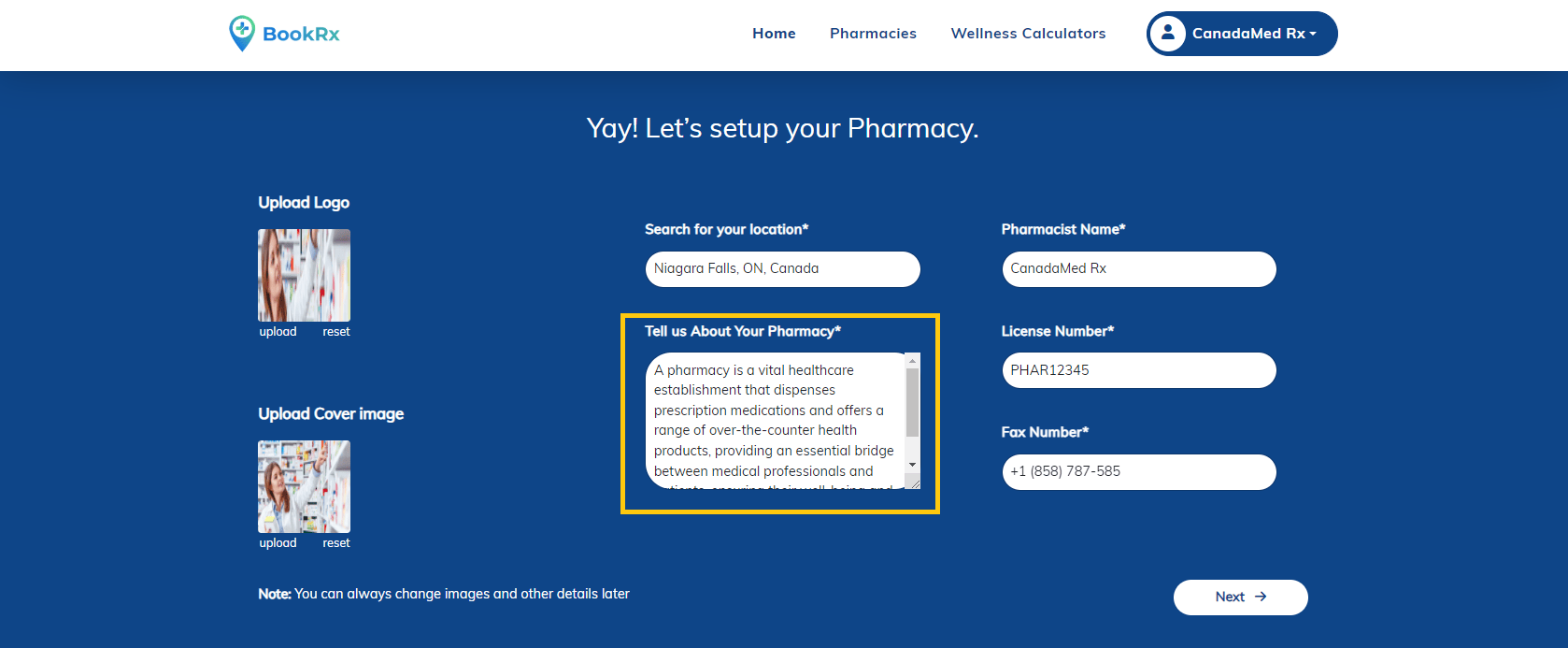
Step 2: Describe Your Pharmacy
- Share some information about your pharmacy in the "Tell us about your pharmacy" input field.
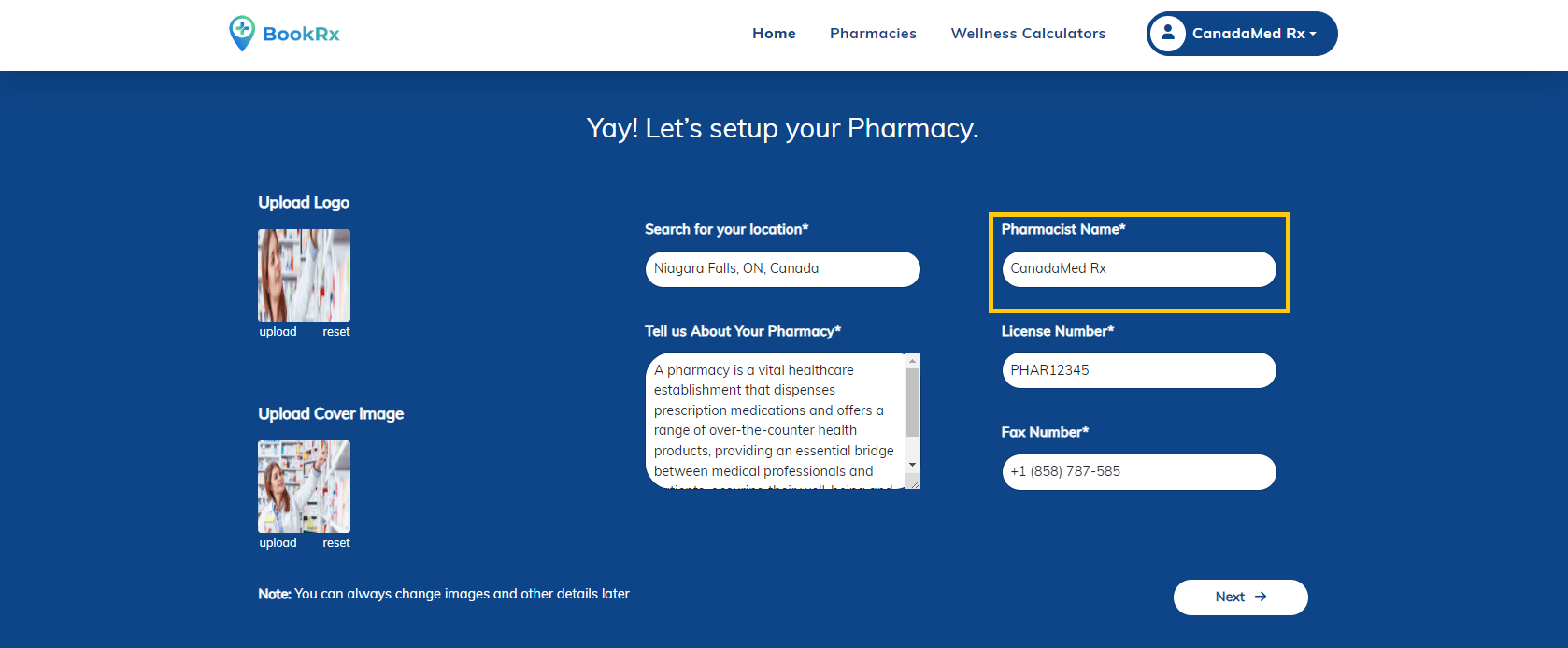
Step3: Enter Pharmacist's Name
- Provide the pharmacist's name in the designated "Pharmacist Name" input box.
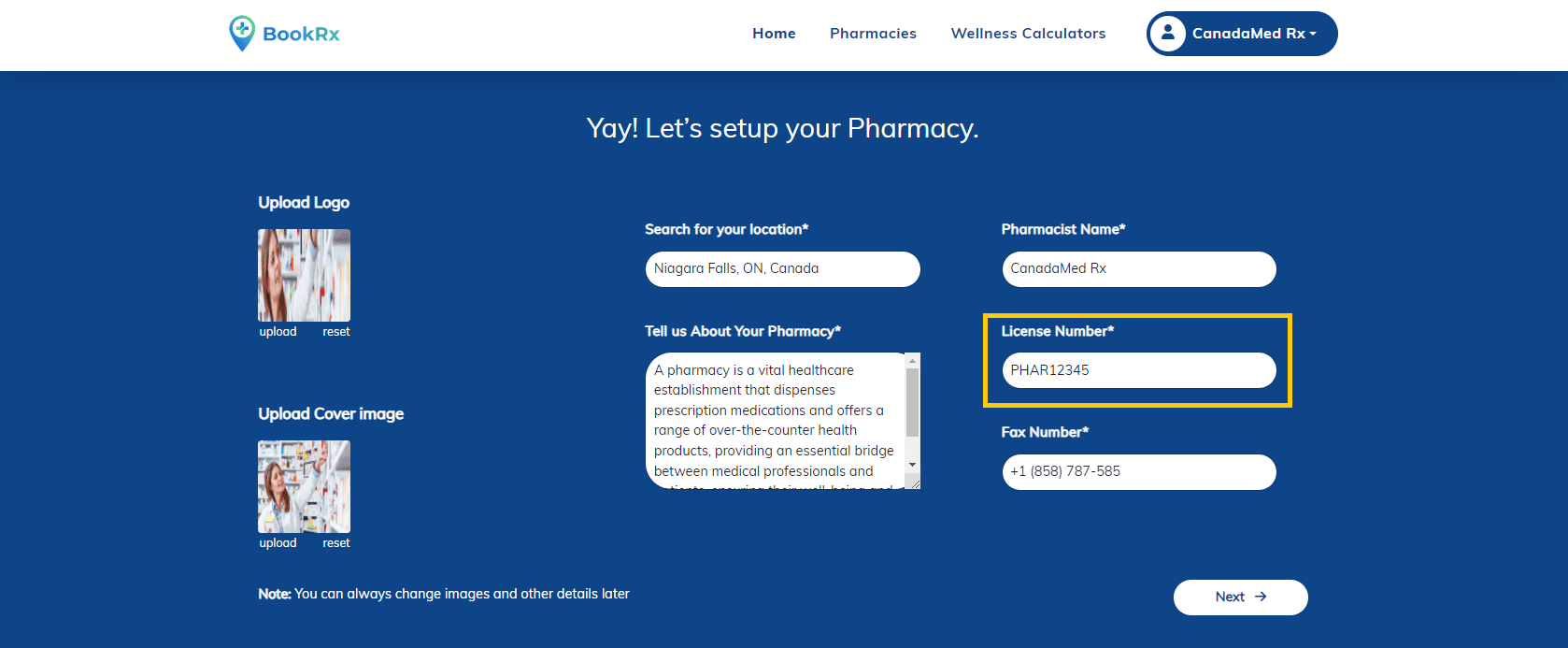
Step 4: Enter Licence Number
- Enter your pharmacy's license number in the "Licence Number" input field.
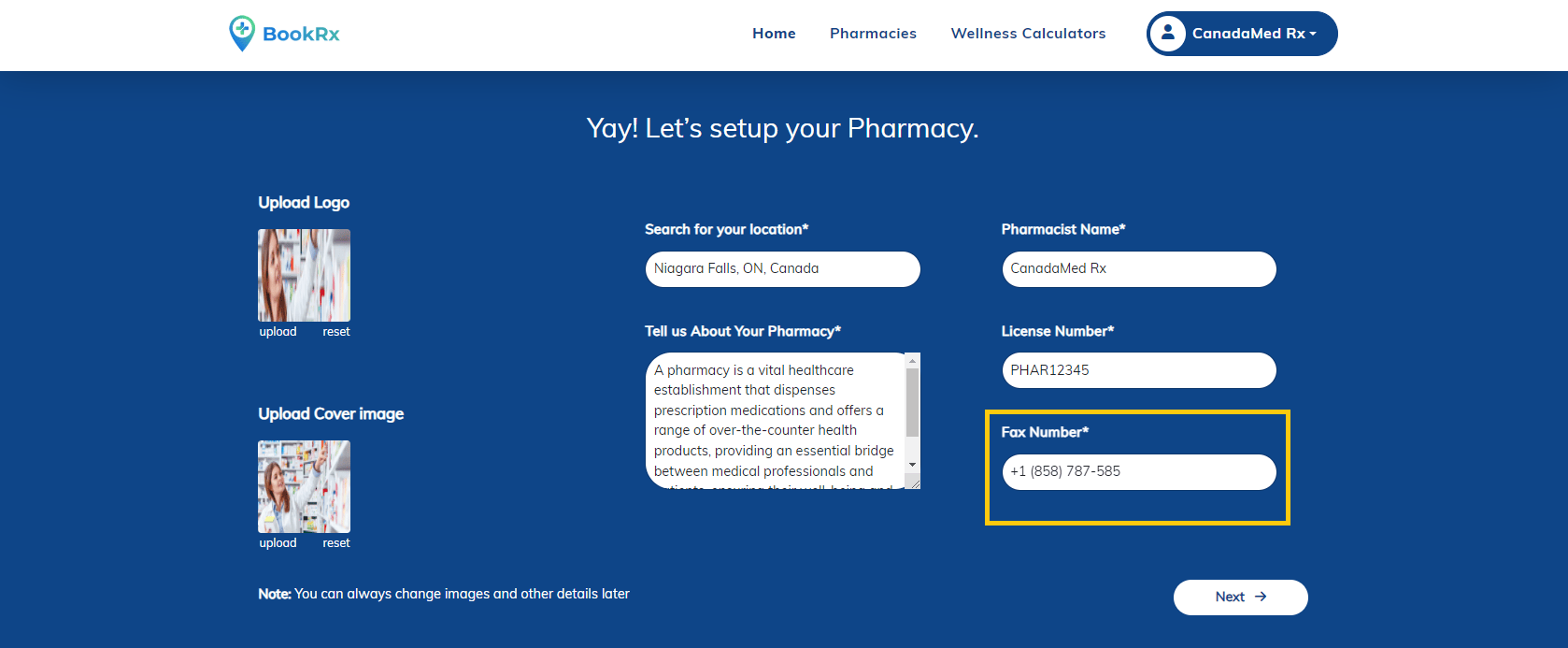
Step 5: Provide Fax Number
- Complete the process by entering your pharmacy's fax number in the "Fax Number" input field.
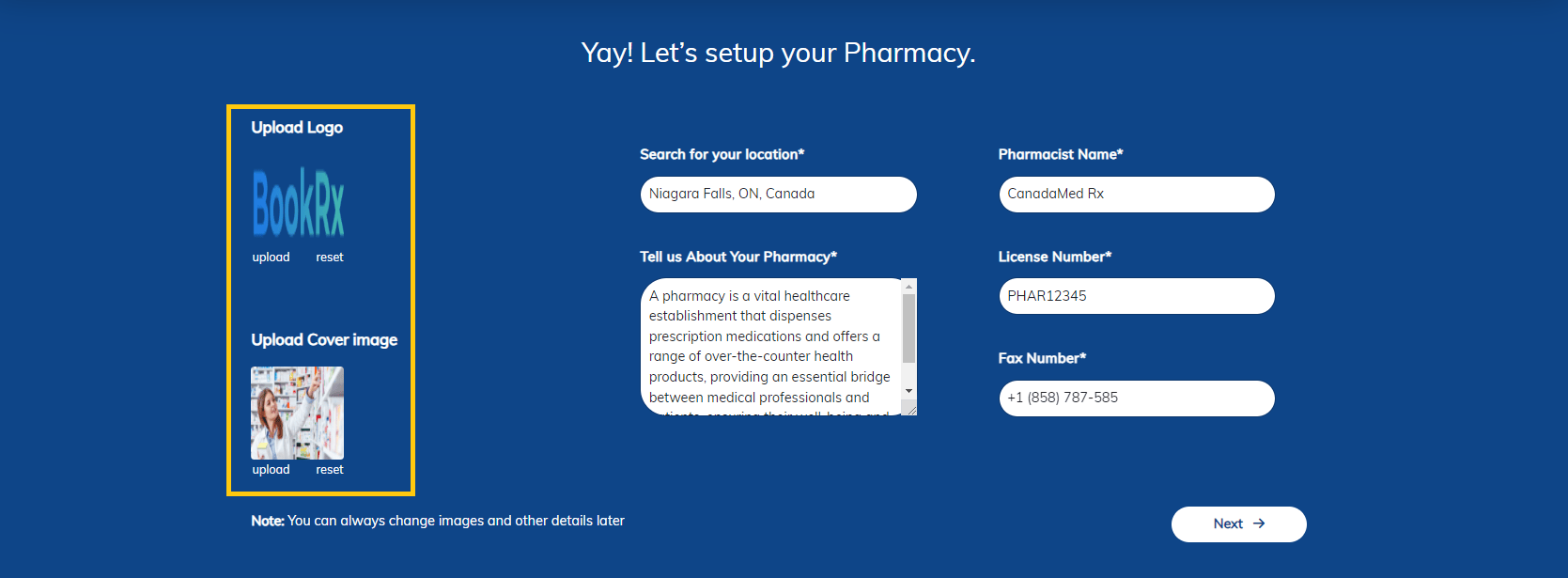
Step 6:Upload Images
- Insert your pharmacy Logo and cover photo by clicking the upload button. Select images from your computer (Note: File size should be less than 5MB).
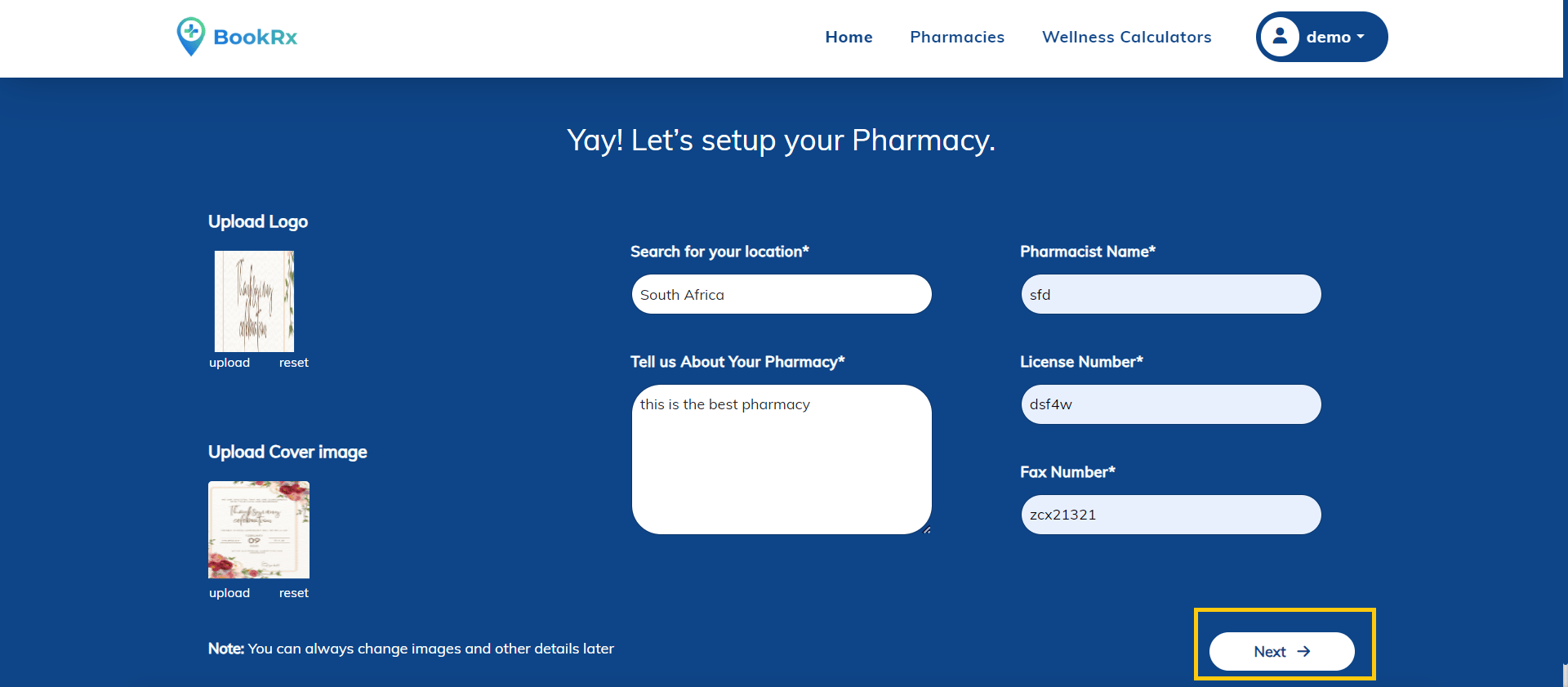
Step 7: Click "Next"
- Click "Next" to continue.
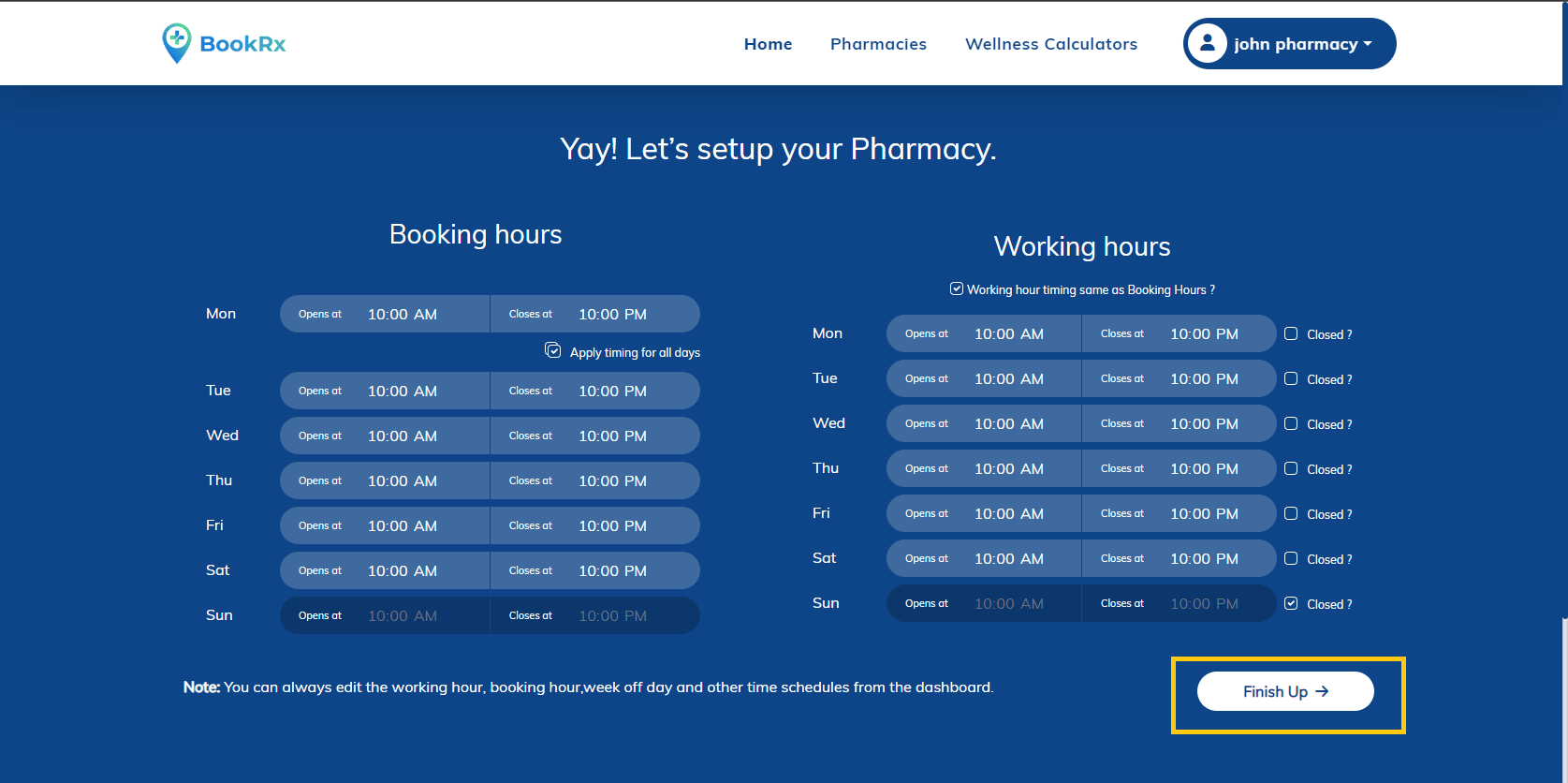
Step 8: Set Working and Booking Hours
- Set your pharmacy's opening and booking hours.
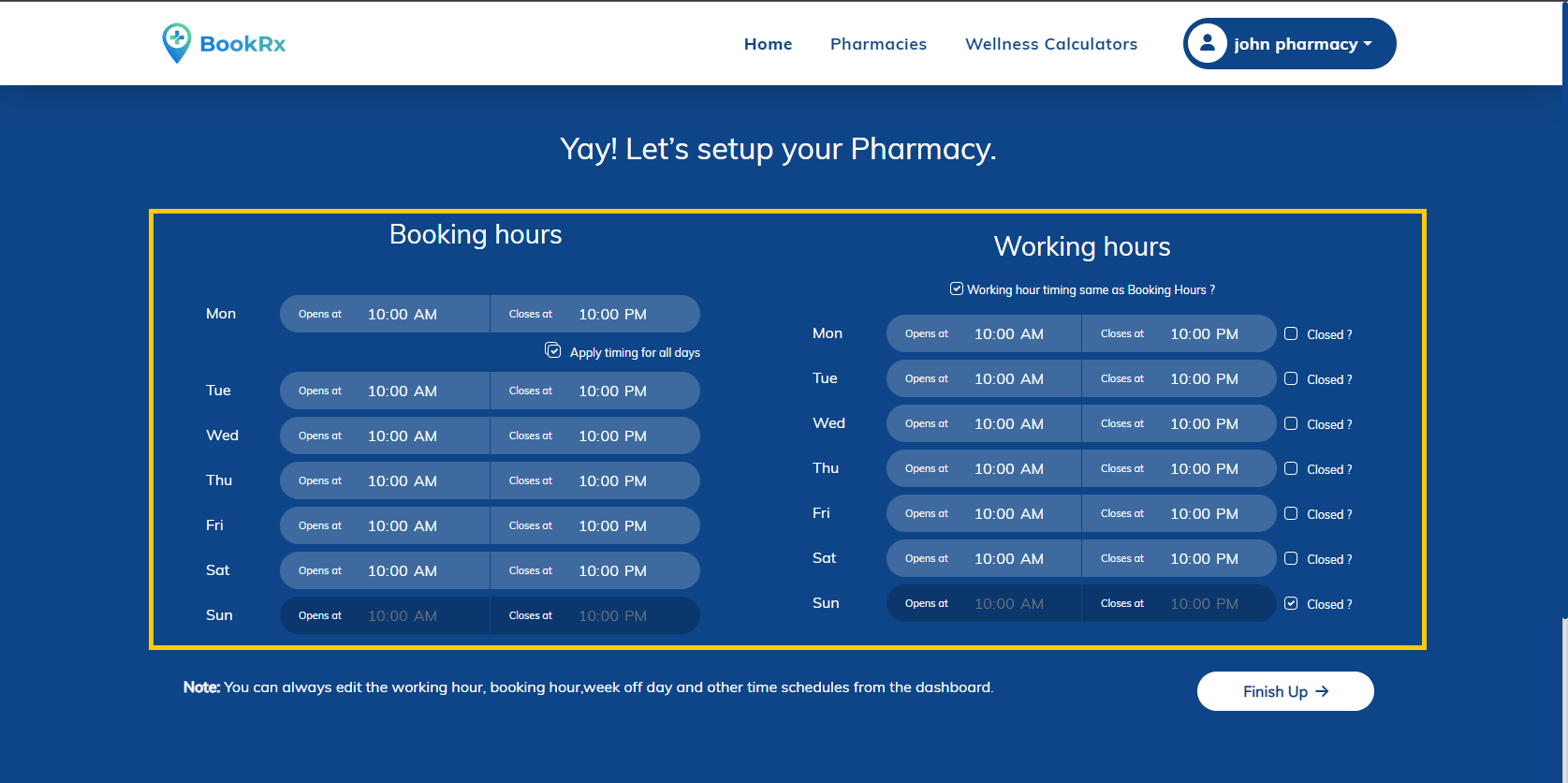
Step 9: Save and Proceed
- After setting your hours, click "Proceed" to continue.